
How to Automate Project Management and Task Assignments
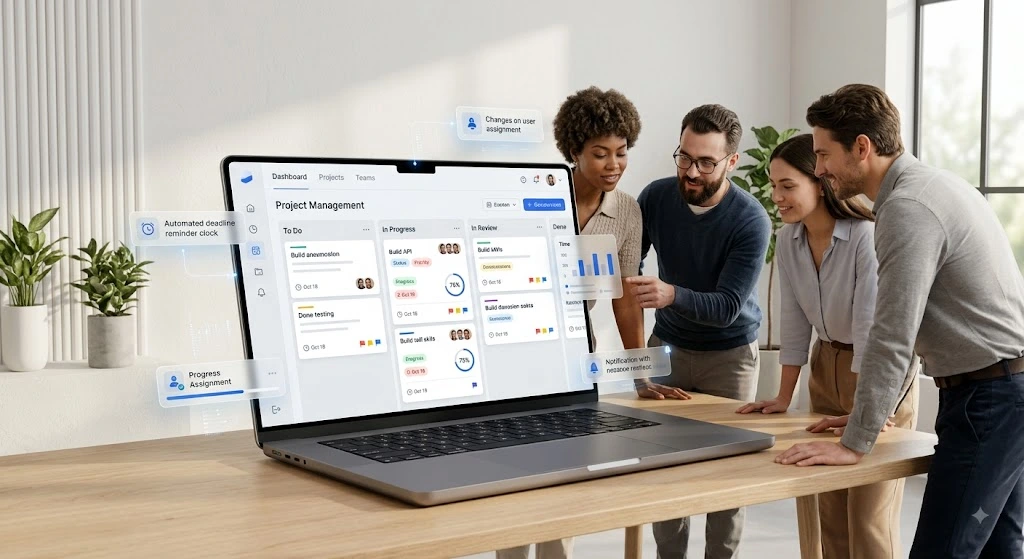
If you manage a team, you already know the real work isn’t the tasks themselves—it’s everything around them. Assigning who does what, chasing status updates, reminding people about deadlines, and typing out the same “just checking in” message for the fifth time this week. None of that moves a project forward; it just eats the hours you needed for actual work.
Learning how to automate project management and task assignments can help teams reduce repetitive coordination work and keep projects moving without constant manual follow-ups.
This is where automation earns its keep. A well-built workflow can assign tasks automatically, update statuses on its own, notify the right person at the right moment, and cut out most of the manual coordination that quietly drains a team’s week. You’re not removing people from the process—you’re removing the repetitive parts that never needed a human in the first place. (If you’re weighing where automation fits into your broader operations, our guide on business automation strategies for small teams is worth a look.)
This guide walks through how to build that kind of workflow, with practical setups in Notion, Asana, and Trello, the mistakes teams commonly make when they first automate, and a simple five-step plan to get started.
How to Automate Project Management and Task Assignments
Automation in project management isn’t about replacing project managers or making decisions for your team. It’s about handling the predictable, rule-based parts of coordination—the “if this happens, then do that” pattern. A new task gets assigned automatically. A near deadline triggers a reminder. A status change notifies the right people without anyone sending a message. These practical workflows are part of broader business automation strategies for small businesses. Once that layer is in place, your team spends its energy on the work itself, not on tracking the work.
Create an Automated Workflow for Project Tasks
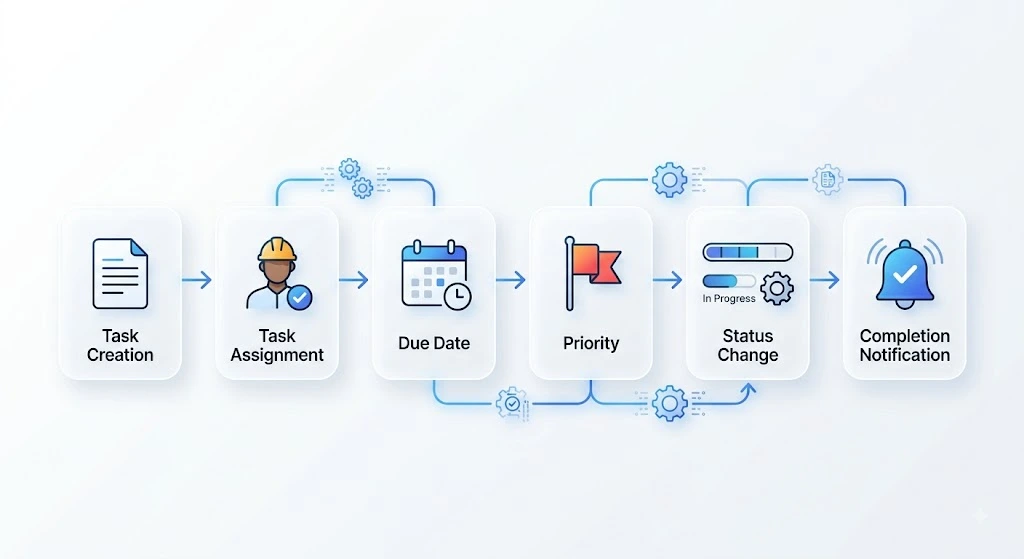
Before you build a single automation rule, map out what actually happens to a task from the moment it’s created to the moment it’s closed. Most task lifecycles follow the same basic shape:
- Task creation — added manually, from a form, an email, or a template.
- Task assignment — routed to the right person or team, without anyone picking a name from a dropdown every time.
- Deadlines — a due date set automatically, either fixed or relative to creation (e.g., “3 business days from creation”).
- Priority — high-priority tasks flagged or sorted so they don’t sit unnoticed in a long list.
- Status changes — the task’s status updates to reflect where it actually stands (To Do, In Progress, In Review, Done).
- Completion notifications — the relevant people are told automatically, instead of finding out three days later in a meeting.
Once you’ve written this out, you’ll usually notice the same five or six actions repeating across most projects. Those repeating actions are exactly what to automate first — they give the biggest time return for the least setup effort.
Automate Task Assignments for Different Team Members
Manual task assignment breaks down the moment a team grows past a handful of people. Someone forgets to assign a task, two people work on the same thing, or a task sits unassigned until someone notices in a status meeting. Automating assignment logic fixes this in a few specific ways:
- Assigning tasks based on role. If a task is tagged “design,” it goes to whoever is set as the design owner for that project. If it’s tagged “QA,” it routes to the QA lead. This removes the guesswork of “Who should actually do “this?”—and it works just as well for content teams routing drafts, briefs, and edits. If content and SEO workflows are part of what you’re trying to automate, our content marketing and SEO guide covers that side in more detail.
- Assigning recurring tasks. Weekly reports, monthly audits, or routine maintenance tasks can be set to regenerate and reassign on a schedule, so nobody has to remember to recreate them by hand.
- Automatically routing new tasks. Incoming requests — from a form, an email, or a client portal — can be assigned based on category, urgency, or workload, rather than waiting for someone to triage them manually. This matters even more once work starts crossing team or partner boundaries; we’ve written about how that kind of cross-team routing plays out in non-competing strategic partnerships.
- Avoiding manual follow-ups. When an assignment is automatic and visible, you stop needing to ask, “Did you see this?” People know a task is theirs the moment it lands, because the system already told them.
For teams struggling with uneven workloads, this is often the single highest-impact automation to set up. For many teams, this can be handled within their existing project management setup without adding another tool.
Automate Project Status Updates and Notifications
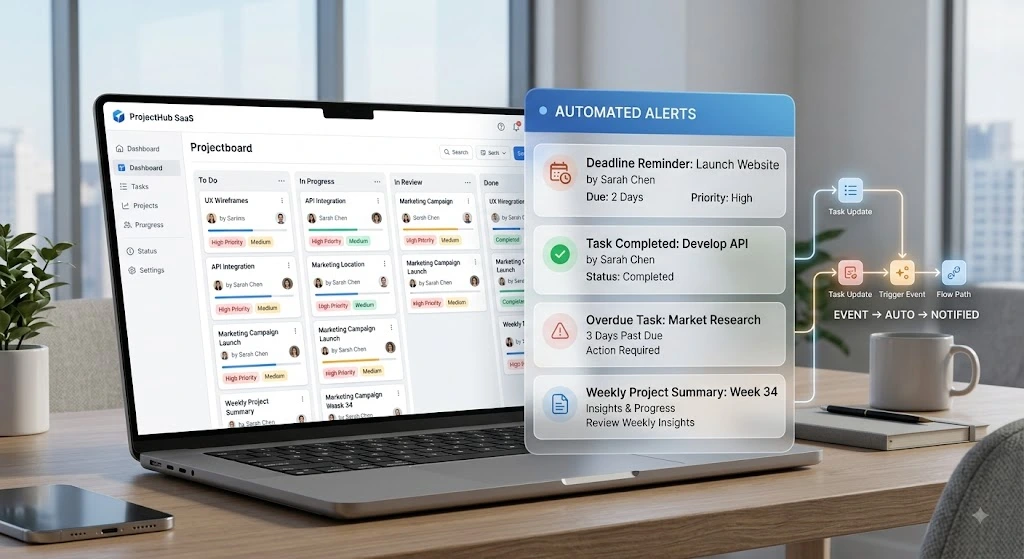
Status updates eat the most time for the least value when done manually. Automating them keeps everyone informed without turning your team channel into a constant stream of “just checking in” messages. A solid setup usually includes the following:
- Automatic status changes — moving a task from “In Progress” to “In Review” the moment it’s marked ready, without someone manually dragging it across a board.
- Deadline reminders — sent a set number of days or hours before something is due, so nothing slips through because someone simply forgot.
- Task completion alerts—notifying a manager, client, or dependent task owner the instant something is finished.
- Overdue notifications — flagging tasks that have passed their due date so they don’t quietly disappear into a backlog. This matters even more for marketing teams, where a missed campaign deadline can quietly push up acquisition costs—something we dug into in why Meta Ads CAC gets too high.
- Team-wide project updates — a weekly or milestone-based summary sent automatically, instead of someone compiling it by hand every Friday.
This is how automated project status updates and project management notifications work together: one keeps the data accurate, while the other makes sure the right person sees it.
How to Automate Project Management in Notion
Notion’s approach to automation is database-driven, which makes it flexible if your workflows don’t fit a rigid template. Here’s the general structure:
- Database-based task management. Every task lives as a row (or card) in a database, with properties like status, assignee, priority, and due date attached to it.
- Status properties. A select or status property tracks where each task sits—Not Started, In Progress, or Done—and can trigger other automations when it changes.
- Assignees. A “Person” property lets you assign ownership, and automations can update or notify based on who’s listed.
- Due dates. Date properties can be combined with formulas to calculate reminders or flag overdue items automatically.
- Automations. Notion’s built-in database automations let you set a trigger (like a status change) and an action (like editing a property or sending a notification) directly inside the database, without needing outside tools for basic workflows. As explained in Notion’s own documentation on database automations, this can be used for assigning a task to a specific person when its status changes or sending a Slack notification when a page is added to a database.
- Notifications. Automations can trigger a Slack message, an email, or an in-app alert when specific conditions are met, keeping the team updated without manual check-ins. Most of this runs on no-code connections between apps—if you want to go deeper on how those connections actually work, we broke it down in our guide to no-code integration tools.
Notion tends to work best for teams that want a system built around their own workflow, rather than one that forces a fixed structure onto every project. Feature availability can vary by Notion plan and automation type, so it’s worth checking your current plan before building a workflow around a specific automation.
How to Automate Task Management in Asana
Asana’s automation system is built around rules—a trigger-and-action model that’s fairly quick to set up once you understand the pattern. According to Asana’s own product documentation on workflow automation, rules let you automate actions across Asana and connected tools like Slack and Gmail, using a rule builder that pairs triggers with actions—for example, automatically moving a task when its due date is approaching.
Here’s what that looks like in practice:
- Rules. Set a trigger (task added, due date approaching, status changed) and pair it with an action (assign task, move section, send notification).
- Automatic task assignments. New tasks matching certain criteria—a specific tag, a form submission, or a project section—can be assigned to a person automatically the moment they’re created.
- Status updates. Moving a task to a new section can automatically update related fields, so status stays accurate without manual editing.
- Due-date reminders. Rules can trigger a reminder a set number of days before a task is due, sent as an email or a direct message.
- Recurring tasks. Asana can regenerate tasks on a schedule so repeating work doesn’t need to be recreated from scratch every time.
- Team notifications. Rule actions can notify a channel or specific teammates whenever a defined trigger occurs. Asana’s Help Center article on rule actions explains that a rule action is an automated activity performed when a rule’s trigger event occurs—allowing you to move tasks, create new tasks or subtasks, and update task details automatically.
Asana generally suits teams that want a structured, rule-based system with clear approval chains and standardized processes. Note: Asana automation features and availability vary by plan.
How to Automate Project Workflows in Trello
Trello’s built-in Automation (powered by Butler) is designed for board-based, visual workflows. Atlassian’s own support documentation on Trello automation describes it simply: automation lets you make things happen whenever a certain condition is met, and most things you can do manually in Trello can also be done through automation — including rules that assign a card and move it to the top of a list whenever a new card is added.
Practical ways to use it include:
- Board automation. Set rules using natural-language-style triggers and actions, no coding required.
- Automatic card assignment. New cards can be assigned to a specific member the moment they’re created or added to a particular list.
- Moving cards between lists. When a checklist is completed or a due date passes, automation can move the card automatically — mimicking how your team already works, just without the manual dragging.
- Due-date reminders. Set reminders that fire a set time before a card’s due date, sent directly to the assigned member.
- Notifications. Trigger comments, mentions, or external notifications (like Slack) whenever specific board activity happens.
Trello is often a good fit for teams that think visually and prefer managing work on a board rather than a list or database.
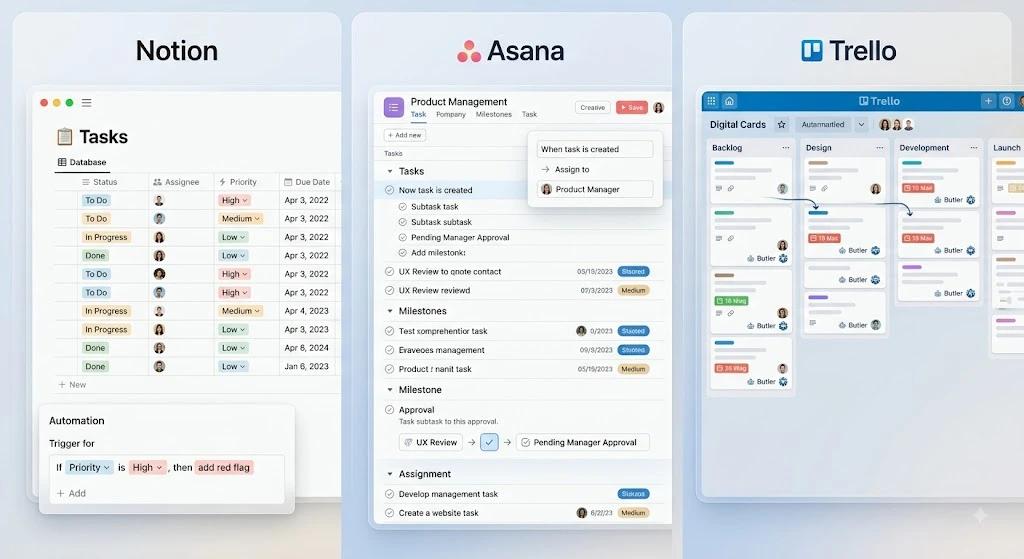
Notion vs. Asana vs. Trello for Project Automation
| Feature | Notion | Asana | Trello |
|---|---|---|---|
| Task automation | ✅ | ✅ | ✅ |
| Automatic assignments | ✅ | ✅ | ✅ |
| Status updates | ✅ | ✅ | ✅ |
| Notifications | ✅ | ✅ | ✅ |
| Recurring tasks | ✅ | ✅ | ✅ |
| Best for | Flexible, custom workflows | Structured teams with approval chains | Visual, board-based workflows |
Note: Automation capabilities and availability vary by platform, plan, and workflow configuration.
None of these platforms are objectively “better” at automation—they’re built around different mental models. Notion offers the most flexibility but needs more setup. Asana offers the most structure with less configuration. Trello offers the clearest visual layout but fewer advanced conditional options on lower-tier plans.
Set Up Automated Notifications Without Creating Notification Overload
Automation can backfire fast if every trigger sends a message to everyone. The goal isn’t more notifications—it’s the right one reaching the right person at the right time:
- Only notify relevant people. A task assignee needs to know immediately. A department head might only need a weekly digest, not every single update.
- Use deadline-based alerts. Reminders tied to due dates (24 hours before, on the day, when overdue) are far more useful than alerts tied to every minor edit.
- Avoid duplicate notifications. If a task change triggers both a platform notification and a Slack message and an email, you’ve built noise, not communication.
- Create escalation rules for overdue tasks. Instead of notifying everyone the moment something is late, escalate gradually — notify the assignee first, then the manager after 24 hours, then the wider team only if it stays unresolved.
Build a Simple Automated Project Management Workflow
It helps to see this as one connected chain rather than separate rules:
New Task → Automatic Assignment → Due Date Set → Status Update → Deadline Reminder → Completion → Team Notification
For example, a client submits a request through a form. The task is created automatically and tagged by category, then assigned to the right team member based on that tag. A due date is calculated automatically based on task type. As the assignee moves the task through stages, the status field updates on its own. Two days before the deadline, a reminder goes out. When the task is marked complete, the client-facing team member is notified so they can follow up — without anyone manually checking in at any point in the chain.
Benefits of Automating Project Management and Task Assignments
Reduce Manual Project Management Work
Every rule you set up removes a small, repeated task from someone’s plate—a status update here, an assignment there. Over a few months, that adds up to real hours back.
Prevent Missed Deadlines and Tasks
Automated reminders and overdue flags catch what a busy team member might miss on their own, especially while juggling multiple projects at once.
Improve Team Accountability
When assignment and ownership are automatic and visible, there’s no ambiguity about who’s responsible for what.
Keep Project Statuses Updated Automatically
Status fields stay accurate because they update based on actual triggers, not because someone remembered to edit them before a stand-up.
Reduce Unnecessary Team Communication
Fewer “any update on this?” messages, fewer status-check meetings, fewer follow-up emails — because the system already surfaces that information.
Common Mistakes When Automating Team Task Management
Automating Too Many Notifications
More automation isn’t automatically better. If every action fires a notification, people start ignoring all of them, including the important ones.
Creating Complicated Workflows
A workflow with ten conditional branches is hard to maintain and harder to troubleshoot when something breaks. Start simple and add complexity only when you actually need it.
Assigning Tasks Without Clear Ownership
Automation can route a task to a role, but if that role isn’t clearly defined, tasks land with the wrong person or nobody at all.
Using Automation Without Reviewing the Workflow
Rules that made sense six months ago might not fit how your team works today. An automated workflow still needs occasional human review.
Failing to Define Clear Task Statuses
If “In Progress” means something different to every team member, status automations will be inconsistent no matter how well they’re built. Define what each status means before automating around it.
How to Start Automating Your Project Management Workflow
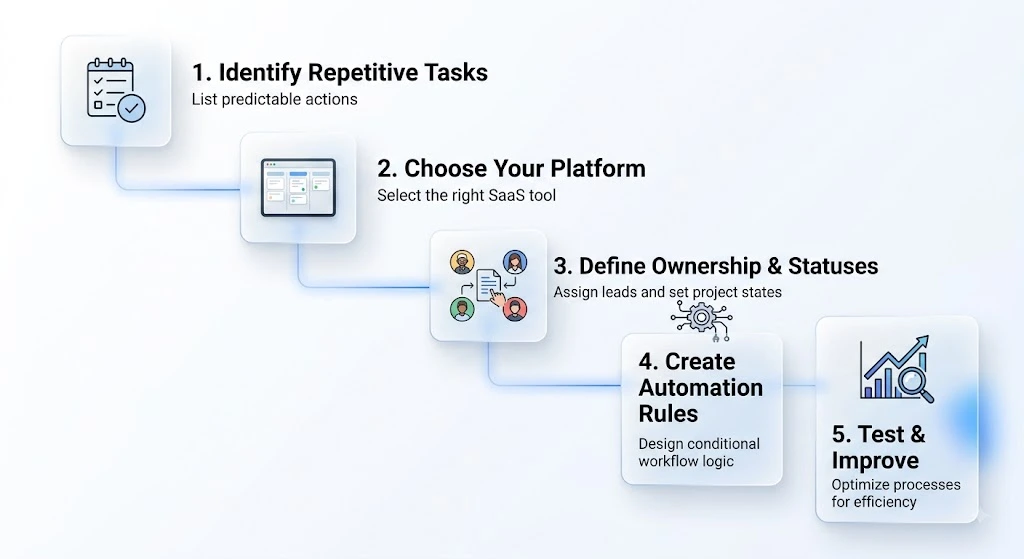
- Identify repetitive project management tasks. Look at what you or your team does manually, every single week, that follows a predictable pattern.
- Choose your project management platform. Pick the tool that matches how your team already thinks—database-style (Notion), structured rules (Asana), or visual boards (Trello).
- Define task ownership and statuses. Agree on what each status means and who owns which type of task before you build a single rule.
- Create automation rules. Start with the highest-impact, lowest-risk automations—task assignment and deadline reminders are usually the best first step.
- Test and improve the workflow. Run it for a couple of weeks, watch for notification overload or misrouted tasks, and adjust before adding more complexity.
Frequently Asked Questions About Project Management Automation
What is automated project management?
It uses rules and triggers to handle repetitive coordination work automatically — assigning tasks, updating statuses, sending reminders, and notifying team members without someone doing it manually each time.
How can I automate task assignments?
Set up rules based on task properties like category, tag, or priority, so tasks route to the right person automatically when created, rather than being assigned by hand.
How do I automatically update project status?
Link status changes to specific triggers—like a checklist being completed or a task moving to a new section—so the status field updates itself as work progresses.
Can Notion automate project management tasks?
Yes. Notion’s database automations let you set triggers and actions directly inside a database, including assigning tasks, editing properties, and sending notifications.
Is Asana good for automated task management?
Yes, particularly for teams that want structured rules and approval-style workflows. Asana’s Rules feature covers assignment, due-date reminders, recurring tasks, and cross-tool notifications.
Can Trello automatically assign tasks?
Yes. Trello’s built-in automation, powered by Butler, can assign cards to specific members, move them between lists, and send reminders based on triggers you define without writing code.
What project management tasks should I automate first?
Start with task assignment and deadline reminders. They’re the easiest to set up, carry the lowest risk, and give the most noticeable time savings right away.
Final Takeaway: Start Small With Project Management Automation
You don’t need to automate everything at once. Pick the one or two coordination tasks that eat the most time every week—usually assignment and status updates—and build rules around just those first. Once that’s running smoothly, layer in reminders, escalations, and cross-tool notifications one at a time.
That’s really what it comes down to: learning how to automate project management and task assignments isn’t a single big project; it’s a series of small, low-risk changes that add up. Start with one workflow, watch how your team actually uses it for a couple of weeks, and expand from there.
Ready to streamline more of your business operations? Explore our guide to business automation strategies for small teams to find more workflows worth automating.
Sources referenced:






Chasing updates is such a drain on productivity. While team automation is key, I also need to manage my own mental load. I use Taskai on my Android to capture quick brain dumps so I never forget to follow up on those manual tasks!