
How to Automate Invoice Reminders for a Small Business
Chasing unpaid invoices is one of the most frustrating parts of running a small business. You send the invoice, the due date passes, and suddenly you’re the one writing awkward “just following up” emails instead of doing the work you actually love. Manual reminders are easy to forget, inconsistent in tone, and a quiet drain on your time.
The good news: this entire process can run on autopilot. A well-built system follows a simple logic—trigger, reminder, follow-up, overdue escalation, and payment confirmation—and once it’s in place, it works quietly in the background every single day. By the end of this guide, you’ll know exactly how to build that system for your own business, step by step

Why Automate Invoice Reminders?
Manually tracking who owes what and when to nudge them doesn’t scale—even with a handful of clients. Automation reduces the manual follow-up work, sends reminders consistently regardless of how busy you get, and can improve payment consistency and reduce delays. It also removes the emotional weight of asking for money in person, protects your cash flow by shortening payment cycles, and keeps a clean, timestamped record of every reminder sent, which is invaluable if a dispute ever comes up.
If you’d rather have this entire workflow built for you, our business automation services for small businesses set up invoicing, reminders, and follow-ups so you never have to think about it again—take a look at how it can reduce manual invoicing and follow-up work.
How Automated Invoice Reminders Work
At its core, the workflow is a straightforward chain: invoice created → invoice sent → pre-due reminder → due-date reminder → overdue reminder → follow-up → payment received → reminders stop. Understanding each link in that chain makes it far easier to set up correctly.
The Trigger
Every automation needs a starting signal. Common triggers include an invoice being created, an invoice being sent, a due date approaching, or an invoice crossing into overdue status.
The Actions
Once triggered, the system can send an email, send an SMS when appropriate, update the invoice status, create a follow-up task for your team, or escalate to a human when the situation calls for personal attention.
The Stop Condition
This is the part most businesses forget to plan for. If payment is received, every future reminder tied to that invoice must stop immediately—few things are more frustrating for a client than receiving a reminder after they’ve already paid.
Our guide on business automation strategies breaks down how invoicing fits into a broader automation plan for growing companies—worth a read if you’re building more than just this one workflow.
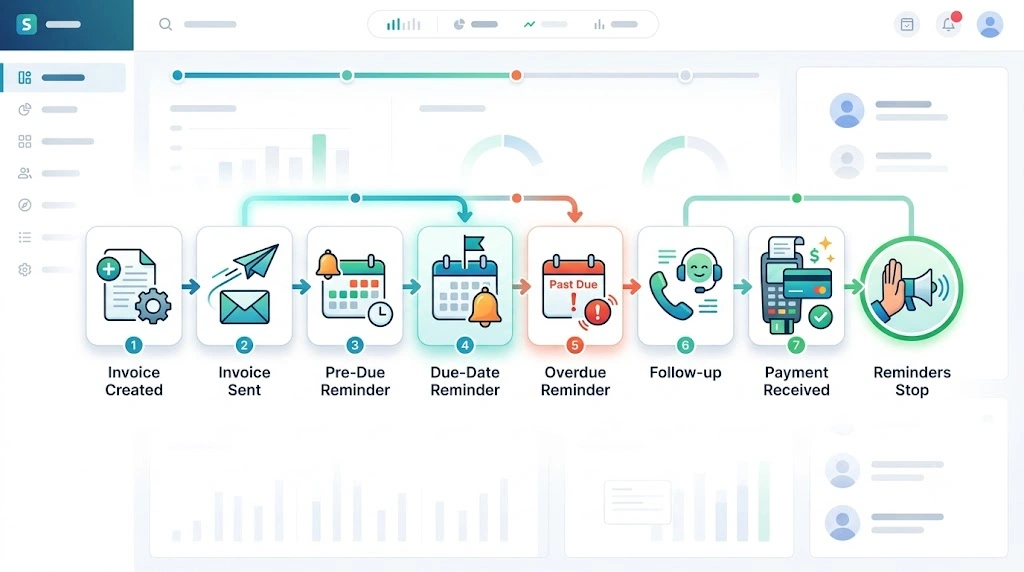
How to Automate Invoice Reminders for a Small Business
This is the practical, step-by-step section—here’s exactly how to build the system.
Step 1: Choose Where Your Invoices Are Managed
Your automation only works as well as the platform it sits on. Popular options include QuickBooks, Xero, Stripe, dedicated invoicing software, or even a spreadsheet paired with an automation tool for very lean setups.
Step 2: Define Your Reminder Schedule
Decide upfront when each reminder fires—from a friendly nudge before the due date to escalation once an invoice is well overdue. (See the full ready-to-use schedule table further down in this guide.) This isn’t a universal rule—adjust the timing based on your payment terms and how well you know each client.
Step 3: Create Your Reminder Templates
Every template should include the customer’s name, the invoice number, the amount due, the due date, a direct payment link, and a clear way to contact you with questions.
Step 4: Set Payment-Based Rules
Define what happens in each scenario: paid invoices stop all reminders, unpaid invoices continue the sequence, and disputed invoices pause automation entirely and get assigned to a human.
Step 5: Test the Workflow
Before going live, test the email, verify the timing, confirm the payment link works, check that the stop condition actually stops reminders, and run a mock overdue invoice through the full sequence.
How to Automate Invoice Follow-Ups
A reminder and a follow-up aren’t the same thing, and treating them as identical is one of the most common automation mistakes.
Reminder vs. Follow-Up
A reminder simply states, “Your invoice is due.” A follow-up goes further: “This invoice is now overdue—here’s the payment link, and please let us know if there’s an issue.” The tone shifts from informative to solution-oriented.
Build a Simple Follow-Up Sequence
A dependable structure is a short automated sequence followed by human escalation: pre-due reminder → due-date reminder → overdue reminders → a real person steps in.
When Automation Should Stop
Pause the sequence the moment a customer replies, a payment dispute arises, an extension is requested, payment is received, or the account clearly needs personal attention rather than another automated message.
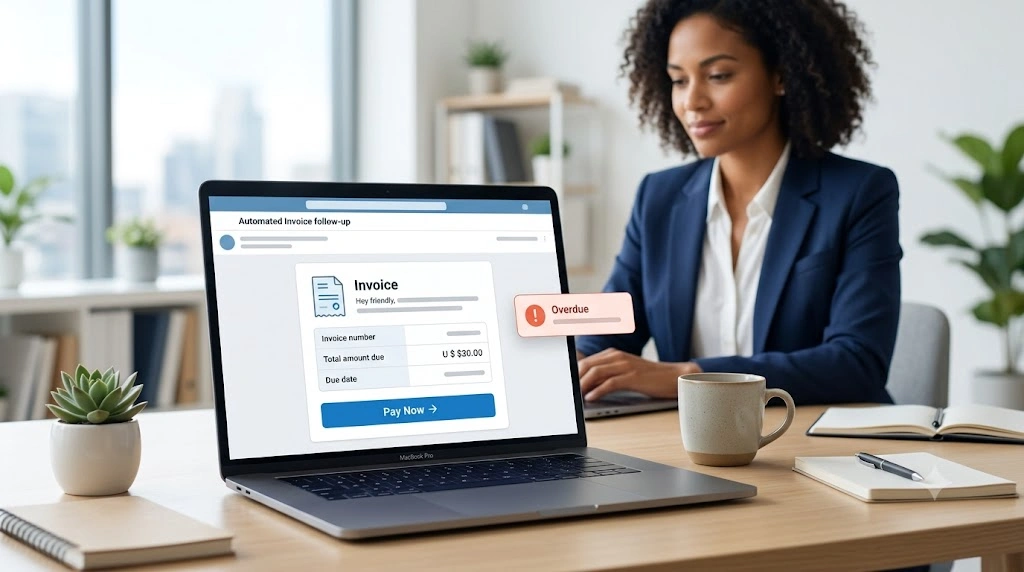
Automate Overdue Invoice Reminders
Overdue invoices deserve their own dedicated workflow, since this is where most cash-flow problems actually originate.
What Counts as an Overdue Invoice?
Any invoice past its agreed due date without payment or a confirmed arrangement counts as overdue—even by a single day.
Create an Overdue Reminder Workflow
The logic runs like this: invoice overdue → check payment status → send reminder → wait → check again → escalate if still unpaid. Each check prevents wasted or duplicate messages.
How Many Overdue Reminders Should You Send?
A first reminder, a second reminder, and a final reminder before human follow-up are generally enough. Beyond that, more emails rarely change the outcome.
What to Do When an Invoice Becomes Seriously Overdue
At this stage, automation should step aside. Send a personal email or make a call, review the original payment terms, consider pausing future work if your contract allows it, and evaluate collections or legal options where appropriate.
Invoice Follow-Up Automation for Small Business
There’s more than one way to build this, depending on your size and budget.
Option 1 — Built-In Accounting Software Automation
For straightforward needs, the reminder features already inside QuickBooks or Xero are often sufficient—no extra tools required.
Option 2 — No-Code Automation
For more customization, connect your invoicing system to Zapier or Make, which can trigger emails, check payment status, and manage follow-ups without writing a line of code.
Option 3 — Simple Workflow for Very Small Businesses
If you send only a handful of invoices a month, don’t over-engineer this. A basic calendar reminder paired with a template email may genuinely be all you need.
Best Invoice Reminder Schedule for a Small Business
Here’s a clean, ready-to-use schedule you can copy directly into your own workflow:
| Stage | Timing | Purpose |
|---|---|---|
| Friendly reminder | 7 days before | Prevent missed payment. |
| Due reminder | 1 day before | Confirm upcoming payment. |
| Due today | Due date | Make payment easy. |
| Overdue #1 | 3 days after | Friendly follow-up |
| Overdue #2 | 7 days after | Stronger follow-up |
| Final reminder | 14 days after | Escalation |
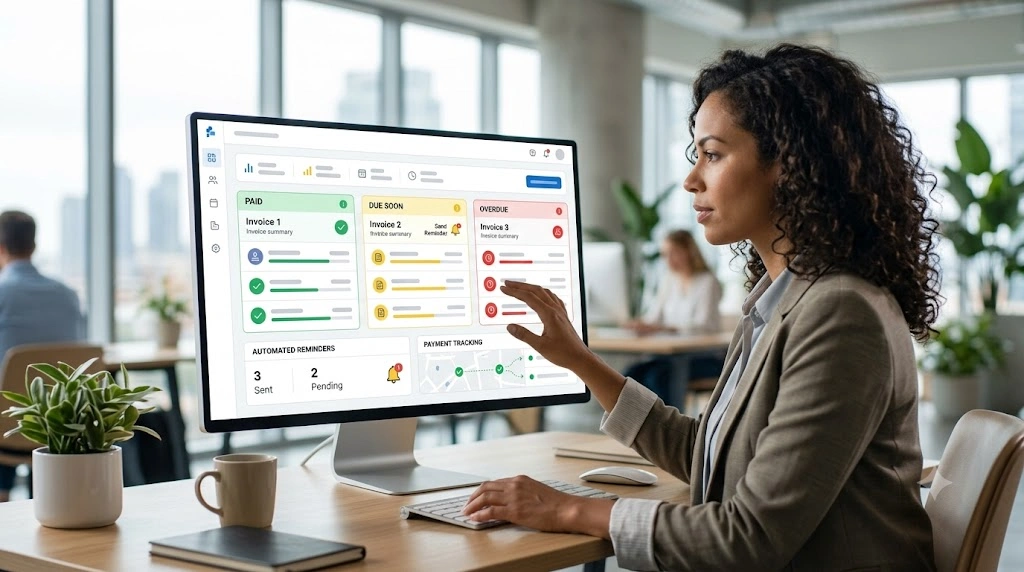
What Should an Automated Invoice Reminder Say?
Keep every message short, professional, and focused on making payment easy—never threatening. Here are four ready-to-use templates you can drop straight into your workflow.
Pre-Due Invoice Reminder Template
Subject: Invoice #[Invoice Number] due soon
Hi [Customer Name], just a quick heads-up that invoice #[Invoice Number] for [Amount] is due on [Due Date]. You can pay securely here: [Payment Link]. Let us know if you have any questions.
Due-Date Reminder Template
Subject: Invoice #[Invoice Number] is due today
Hi [Customer Name], this is a friendly reminder that invoice #[Invoice Number] for [Amount] is due today. Pay in one click here: [Payment Link]. Thanks for your business!
Overdue Invoice Reminder Template
Subject: Invoice #[Invoice Number] is now overdue.
Hi [Customer Name], our records show invoice #[Invoice Number] for [Amount], due on [Due Date], hasn’t been paid yet. You can settle it here: [Payment Link]. If there’s an issue on your end, just reply and let us know.
Final Payment Follow-Up Template
Subject: Final reminder: Invoice #[Invoice Number]
Hi [Customer Name], this is our final automated reminder for invoice #[Invoice Number] ([Amount]), now [X] days overdue. Please pay here: [Payment Link], or reply to this email so we can sort out a plan together.
Common Mistakes When Automating Invoice Reminders
A few pitfalls come up again and again: sending too many reminders, continuing them after payment has already been received, using the exact same message every time, skipping human escalation entirely, making the payment process difficult, and launching the workflow without properly testing it first. Avoiding these keeps your automation feeling helpful rather than annoying.
How to Know If Invoice Reminder Automation Is Working
Track a handful of clear metrics: average days to payment, your overdue invoice rate, reminder-to-payment conversion, the number of manual follow-ups still needed, time saved overall, and your outstanding accounts receivable. If wondering whether your setup is actually reducing operational load, our piece on how to scale a small business without increasing operating costs shows how automating invoicing fits into that bigger picture.
A Simple Invoice Reminder Automation Workflow
Here’s the complete framework in one glance:
Invoice Created → Invoice Sent → 7-Day Reminder → 1-Day Reminder → Due Date → 3-Day Overdue Reminder → 7-Day Follow-Up → 14-Day Human Escalation → Payment Received → Stop
Keep this as your reference blueprint whenever you’re building or auditing your own system. And if you’d rather protect cash flow without adding overhead, see how to scale a small business without burning cash using the same automation-first approach.
Frequently Asked Questions
Can I automate invoice reminders without coding? Yes. Tools like QuickBooks, Xero, and no-code platforms such as Zapier or Make let you build a full reminder sequence without writing any code.
How do I automatically remind customers about unpaid invoices? Set up a scheduled sequence—pre-due, due-date, and overdue reminders—tied to your invoicing software, with each one stopping automatically once payment is received.
How many invoice reminders should I send? Three to four is typically enough: a pre-due reminder, a due-date reminder, and one or two overdue reminders before escalating to a personal follow-up.
When should I send an overdue invoice reminder? The first overdue reminder usually works best around three days past the due date, with a follow-up roughly a week later if payment still hasn’t arrived.
Can QuickBooks or Xero automatically send invoice reminders? Yes, both platforms include built-in reminder features that can be scheduled and customized directly within their invoicing tools.
Can Gmail automatically send invoice reminders? Not by itself, but Gmail can work with automation tools like Zapier or Make to send scheduled invoice reminders based on triggers from your invoicing software.
Should invoice reminders stop when a customer pays? Always. Every automated workflow needs a stop condition tied to payment status, so no customer receives a reminder after they’ve already paid.
Final Takeaway
Not every customer interaction needs to be automated, and it shouldn’t be. The goal is to automate the predictable parts of invoice follow-up—the reminders, the timing, and the routine nudges—while keeping real human attention for disputes, unusual delays, and the relationships that matter most. Get that balance right, and unpaid invoices stop being a weekly headache and start becoming a background process that quietly takes care of itself.